
Booking parcels
How orders become shipments, and the ways to book them.
Last updated 17 October 2026
From order to shipment#
New Shopify orders appear on the Shipments page on their own. Each is checked against India Post’s rules (address, PIN code, phone, weight, size, service) and becomes:
- Ready to book: it can be booked.
- Needs attention: something must be fixed first. The reason and the fix are shown. See Needs attention.
Orders waiting for payment, on hold or scheduled in Shopify wait too, and continue when that changes.
Book#
- Book N ready on the Shipments page books every ready shipment. If some have an Estimated weight, or were imported, it asks you to confirm first: weigh those and enter the packed weight on the shipment, or book anyway.
- Or tick some shipments and choose Book selected.
- From Shopify’s order page, the India Post card shows the order’s shipment and has Book now (or Book again after a cancel).
- From Shopify’s order list, select up to 100 orders and choose Book with India Post in the bulk actions. It books the ready ones and brings in orders not in the app yet for checking (the button reads Check orders when none is ready to book).
Booking happens in the background and takes a few seconds; labels follow on their own. The page updates itself while it works.
Before you book#
Open a shipment to change its service, package, weight, parcel shape, dispatch location, cash-on-delivery amount or pickup date. Changes can be made until it’s booked.
If India Post rejects a booking#
The shipment shows as Rejected with India Post’s reason. Fix what it names (often on the order in Shopify), then choose Retry. The same article ID is used again. The exception: if India Post says the article ID is already used, Retry replaces the shipment with a new one that gets a new article ID. The same happens for a shipment under Needs attention whose article ID is from your other India Post system (test or live).
Orders from before you installed#
Import recent orders on the Shipments page brings in orders placed or updated since a date you choose: up to 60 days back (7 days unless you change it). Orders already in the app are skipped, and ones already fulfilled or cancelled in Shopify are left out. Imported orders are never booked automatically: check they still need sending, then book the ones you want.
Find a shipment#
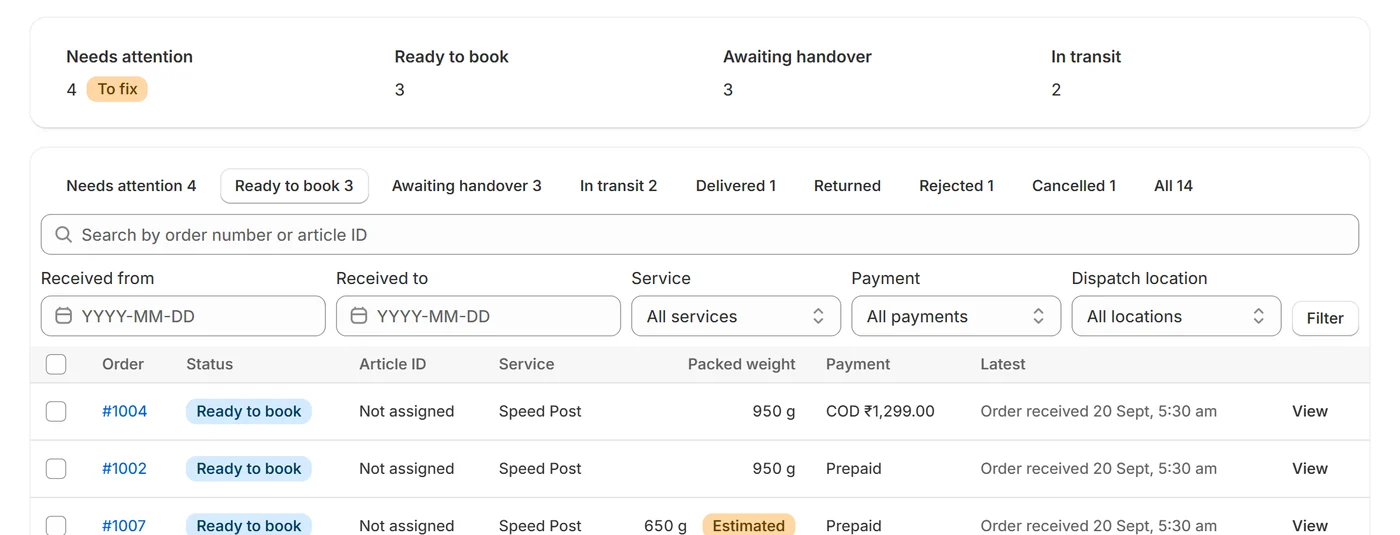
Search by order number or article ID. The tabs (Needs attention, Ready to book, Print labels, Awaiting handover, In transit, Delivered, Returned, Rejected, Cancelled, All) filter by status, and the filters narrow them by date received, service, payment and dispatch location. Refresh checks Shopify for new and changed orders straight away.
Picklist#
Before packing, Picklist (N) at the top of the Shipments page downloads what to take from the shelves for every order in Ready to book; or tick shipments and choose Print picklist. It lists each order’s items (SKU, product, quantity and price), then the total of each SKU, with no customer details. One file holds up to 200 orders (the oldest first, when more are waiting).
Shipments spreadsheet#
Export downloads the current tab, search and filters as a CSV spreadsheet (Export selected for ticked rows): one row per item, with the order, status, article ID, service, amounts, weight and size, the customer’s name, phone and address, booking and tracking dates, and Uniware details. Up to the newest 10,000 shipments.