
Unicommerce (Uniware)
Optional: ship with Uniware, or keep its stock in step with your India Post parcels.
Last updated 17 October 2026
Two separate options, under Settings → Unicommerce. Use Shipping in Uniware if your Shopify orders go to Uniware (Shopify is one of its sales channels). Use Stock updates if they don’t. Never both.
Shipping in Uniware#
The app books India Post and prints the label. Uniware’s packing, manifest and dispatch go on as usual, with the same article ID everywhere: on the label, in Uniware, in Shopify and in your customer’s tracking.
- Before booking, the app checks the order in Uniware. If Uniware has already shipped it (with its own courier or article ID), or it’s cancelled there, it isn’t booked again: it waits under Needs attention, so an order never ships twice.
- After booking, the order’s package in Uniware gets your India Post courier, the article ID and the weight, and then its invoice. Uniware makes the package a few minutes after it receives the order: until then the shipment shows “Waiting for Uniware to make the order’s package”.
- Invoices: with Create the invoice in Uniware on, print them as their own file: select shipments and choose Print invoices on the Shipments page, or Download invoice on a shipment. An invoice is ready a few minutes after booking.
To set it up, under Shipping in Uniware:
- Enter the Uniware courier code for India Post (in Uniware under Settings → Shipping Provider).
- In Uniware, set that courier’s article ID (AWB) generation to Manual, not List: with List, Uniware gives each package a number from its own list. If other channels need List, add a second India Post courier in Uniware with Manual IDs for Shopify orders, and use its code. Then tick This courier’s article IDs are set to Manual in Uniware.
- Switch on Use Uniware for shipping. It applies to bookings from then on.
Stock updates#
If you keep your stock in Unicommerce, the app can update it as parcels move: stock is taken out when India Post confirms a booking (or when the parcel is delivered, if you prefer), and put back when a booked parcel is cancelled before India Post has it, or comes back to you.
Only use this if your Shopify store isn’t connected to Unicommerce as a sales channel. With that connection, Unicommerce already takes stock out for each order, and this would take it out a second time.
Before you connect#
- Unicommerce only answers servers it has approved: ask your Unicommerce account manager to whitelist our server’s IP address, shown on the settings page.
- Use an API user that is an Admin in Unicommerce and can use your facility.
- Each product’s SKU in Shopify must be its SKU in Unicommerce: items are matched by SKU.
Connect#
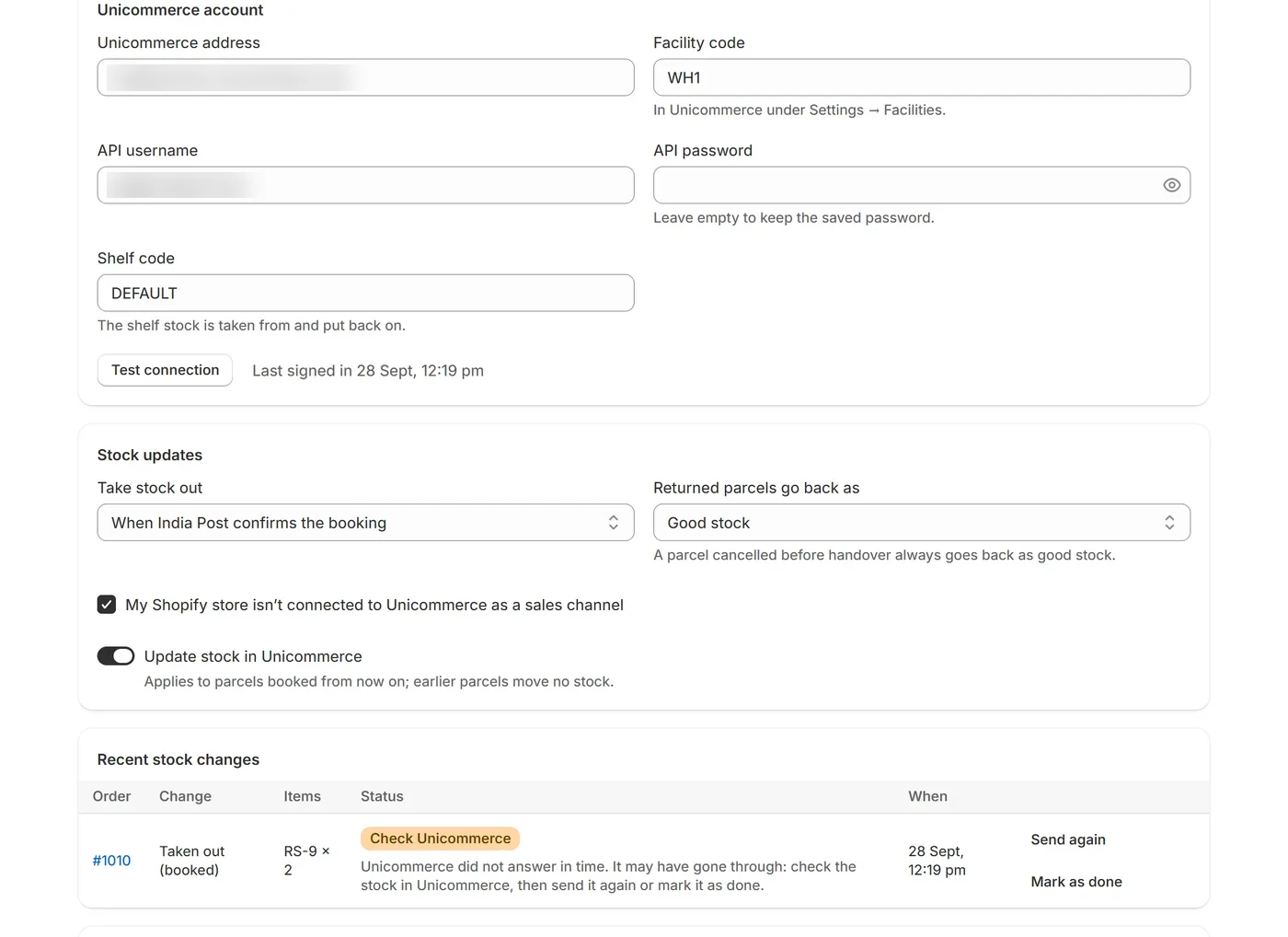
Under Settings → Unicommerce → Unicommerce account, enter your Unicommerce address, the facility code (in Unicommerce under Settings → Facilities), the API username and password, and the shelf code (the shelf stock is taken from and put back on). Once saved, Test connection checks the login and the facility.
Then, under Stock updates:
- Take stock out: when India Post confirms the booking, or when the parcel is delivered.
- Returned parcels go back as good stock, or bad stock to inspect first. A parcel cancelled before handover always goes back as good stock.
- Tick My Shopify store isn’t connected to Unicommerce as a sales channel and switch on Update stock in Unicommerce. It applies to parcels booked from then on.
Recent stock changes#
Each change is listed with its order, items and result (Waiting, Sending, Done, Not needed, or Waiting for the removal when a put-back waits for its take-out). Stock moves once per parcel:
- Failed: Unicommerce refused it (for example a wrong shelf code, or an item without a SKU). Fix the cause, then choose Send again.
- Check Unicommerce: Unicommerce’s answer was unclear, so the change may have gone through. Check the stock in Unicommerce, then choose Send again or Mark as done. It’s never sent again by itself.
The shipment’s page shows its stock changes under Activity. Disconnect Unicommerce stops new updates and shipping in Uniware; nothing already sent is undone.