
Order tracking on your store
A “Track your order” link on every page of your store, so customers can see where their parcel is. Works with every theme.
Last updated 17 October 2026
Customers click “Track your order” on your store, enter their order number, and see where their parcel is. It’s an app embed, so it works with every theme: Online Store 2.0 and older (vintage) themes alike, and nothing is added to your theme’s code.
Set it up#
In the app, open Settings → Order tracking on your store. The page takes you through three steps:
- Turn on order tracking: choose Turn on. This makes the “Track your order” app embed available in your theme editor; nothing changes on your store yet.
- Switch on the app embed in your theme: your live theme is chosen (for one you’re preparing, use Choose another theme). Then choose Open the theme editor. It opens on App embeds with “Track your order” already switched on. Check the preview, then click Save at the top right of the theme editor. Back in the app, the page shows the embed as on for that theme.
- Check it on your store: Open your store to see the link, or Open the tracking page.
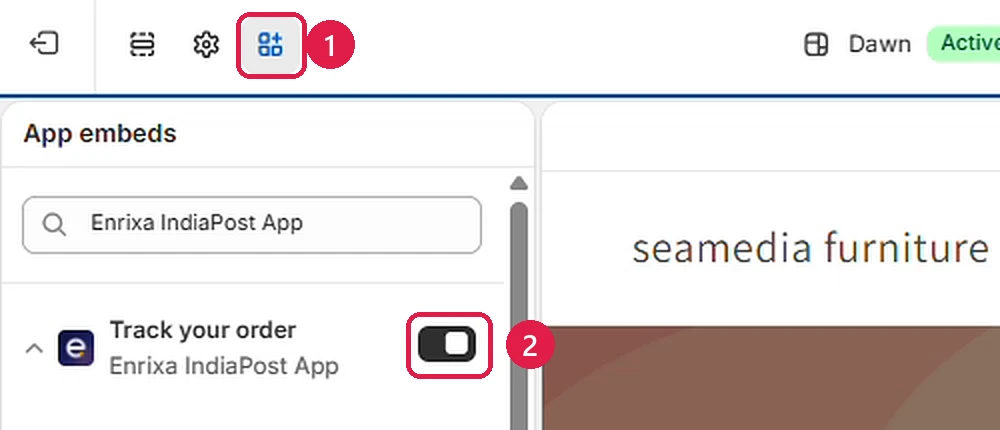
Without the app: Online Store → Themes → Customize on your theme → the App embeds icon in the left sidebar → switch on “Track your order” → Save. (Turn it on in the app first, or the embed isn’t listed.)
Where it appears#
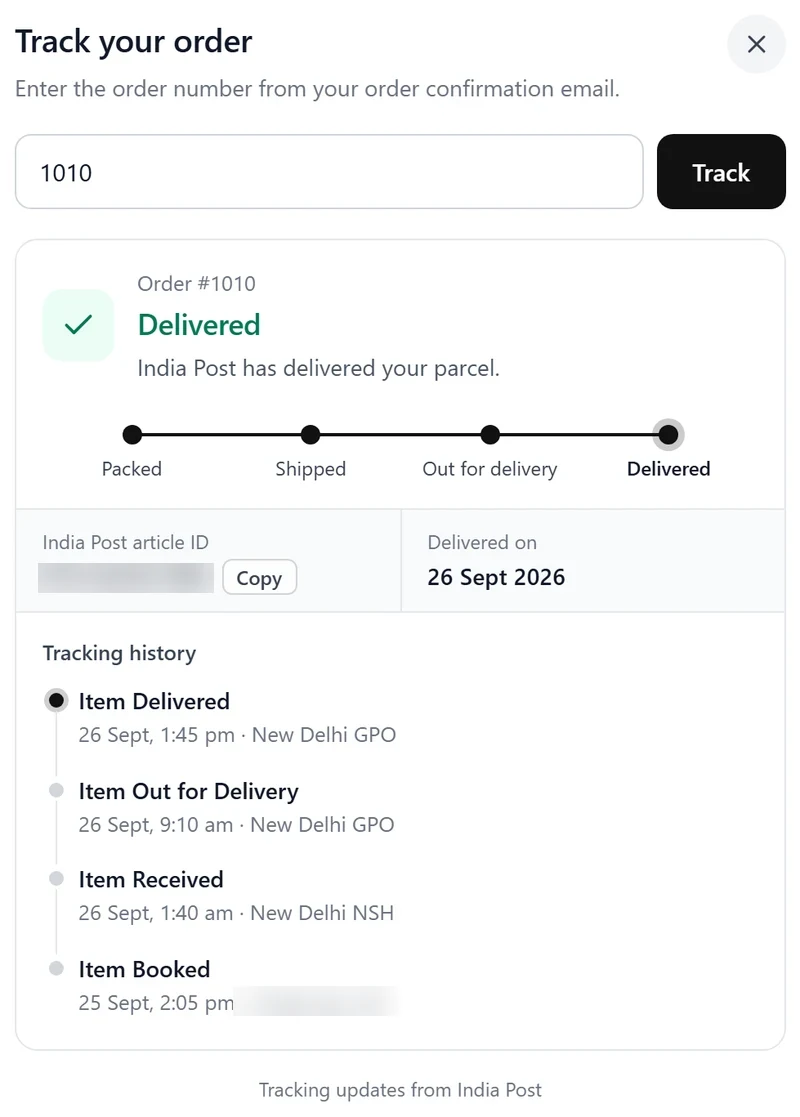
On every page of your store: home, products, collections, cart, pages and blog. It’s a link in your footer (just above the copyright line) or a floating button, and it opens tracking as a dialog over the page. The tracking page, /apps/track on your store, also works on its own, for example from a menu. If your footer already links to the tracking page, the footer link isn’t added twice.
Choose how it looks#
In the theme editor, click “Track your order” under App embeds, then save the theme after changing these:
- Link text: the words customers see (“Track your order” unless you change it).
- Where to show it: in the footer, as a floating button at the bottom right or left, or only as links you add to your menus (link a menu item to /apps/track in Online Store → Navigation).
- Button colour: the Track button and the floating button; the text on it turns black or white, whichever reads better.
- Show India Post’s scans: in the dialog, each scan’s date and post office, or only the status and article ID. The full tracking page always lists the scans.
- Tracking page path: leave it as /apps/track, unless you changed the app’s URL in Settings → Apps (App proxy).
What customers see#
- Each parcel’s status in plain words (being prepared, packed and booked, on its way, out for delivery, delivered, being returned, returned to the store), its India Post article ID and India Post’s scans. Anything unusual shows as “Please contact the store”.
- Never a name, address or phone: only what India Post shows anyone with the article ID.
- An order that isn’t booked yet shows as being prepared. Cancelled shipments aren’t shown.
- Lookups are limited, so nobody can go through your orders one number after another.
Turning it off#
- From one theme: in the theme editor, App embeds → switch off “Track your order” → Save.
- Everywhere: Turn off in the app. The app embed disappears from every theme and lookups stop. Turn it on again any time; your theme settings are kept.
- Uninstalling the app removes the app embed from your themes by itself: nothing is left in your theme code.
Earlier versions of the app added “Track your order” to your Footer menu. If the page asks you to, remove that menu item in Online Store → Navigation: the app embed replaces it.