
Labels
Label sizes, printing one or many, and reprinting.
Last updated 17 October 2026
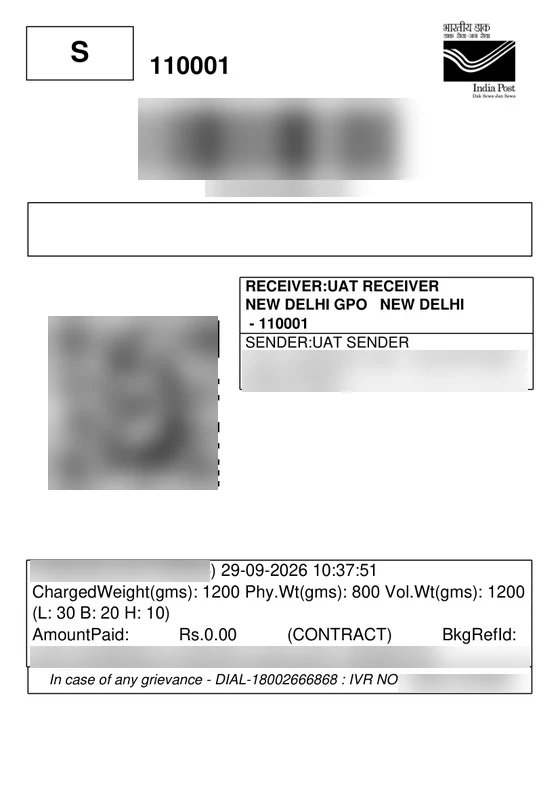
India Post creates each parcel’s label when it’s booked. The app keeps it ready to print.
Label size#
Set it under Settings → Dispatch locations → Labels:
| Size | For |
|---|---|
| A5 (148 × 210 mm) | Office printers: half an A4 sheet |
| A6 (105 × 148 mm) | Thermal label printers |
| A7 (74 × 105 mm) | Small label printers |
| A5 ×2 (two A5 labels on one A4 sheet) | Office printers, two parcels per sheet |
India Post’s own parts of the label (service, barcodes, sender and receiver, weights, office, amount paid) are never changed. With Add order details to labels on, the app adds the payment mode and amount to collect, the order number with its barcode, the customer’s phone, who to return to, and the items, in the spaces India Post leaves empty.
Labels from India Post’s test system are stamped TEST LABEL: NOT FOR DISPATCH. A label made again after India Post has the parcel is stamped as a record copy, not for shipping. A part of the address in a script the label can’t print (for example Hindi or Tamil) is left off and marked, such as (CITY: WRITE BY HAND).
The Print labels tab#
A booked parcel waits under Print labels until you mark its label printed. Print the labels, put them on the parcels, then mark them printed: they move to Awaiting handover. Printing alone never moves a parcel, so a printer jam or a reprint can’t make one look ready when it isn’t.
- One parcel: Mark printed on its row, or Mark label printed on the shipment’s page.
- Several: tick them and choose Mark labels printed.
- Right after Print hand-over labels or printing ticked parcels’ labels, the Shipments page offers to mark the parcels in that file as printed. Labels printed from Shopify’s order pages, or with Print hand-over labels again, don’t mark anything: mark those parcels in the app.
- Marked one by mistake, or the label needs printing again? Tick it under Awaiting handover and choose Move back to Print labels (or use the button on the shipment’s page). Recording a handover marks the label printed too.
Print#
- One parcel: Print label on its row, or open the shipment and download its label, or use Print → India Post label on Shopify’s order page.
- Several: tick them on the Shipments page and choose Print labels for one PDF (up to 200), or select up to 100 orders in Shopify’s order list and use Print → India Post labels. Labels in a file are in order number order.
- Print hand-over labels (N) at the top of the Shipments page downloads the labels of parcels awaiting handover that weren’t in an earlier hand-over file, the oldest 200 at a time. Once all are printed, Print hand-over labels again prints every parcel still awaiting handover once more. See Hand-over and pickup.
If some labels can’t go in a file (not booked yet, cancelled, or the label failed), the Shipments page says which ones and why. A file printed from Shopify’s order list or order page ends with a page listing them.
Reprint#
Labels are kept until 7 days after India Post first scans the parcel. After that, or if a label failed, open the shipment and choose Regenerate label: India Post creates it again with the same article ID.